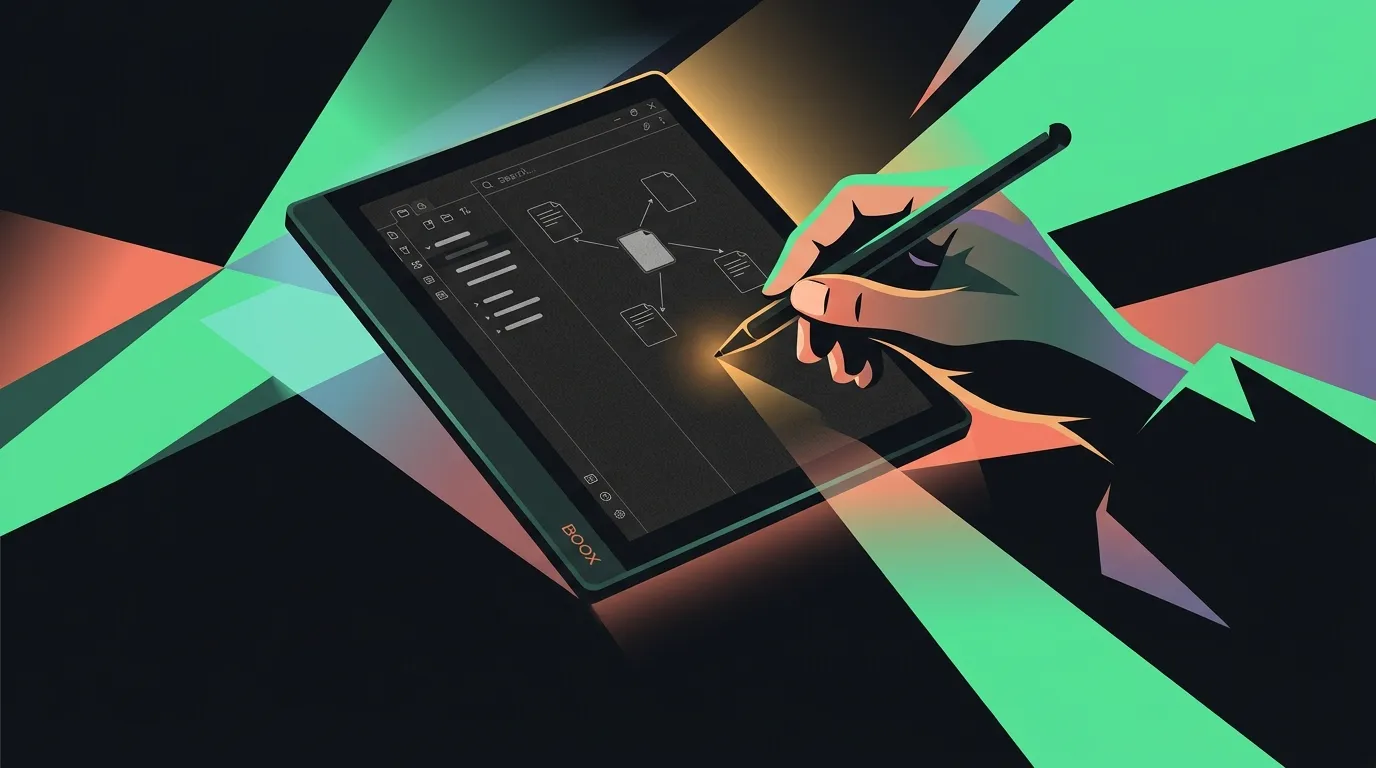

The dream is always the same. You buy an Onyx Boox e-ink tablet, thinking you have finally found the ultimate distraction-free writing setup. You will sit under a tree, read your PDFs, and write your daily notes in Obsidian on a screen that feels like paper. No blue light, no notifications, just pure focus.
Then you actually open Obsidian.
Out of the box, the experience is a laggy, ghosting mess. The default dark theme turns the screen into a muddy gray smudge. The smooth animations that look great on a phone or laptop create a trail of digital dust on electronic paper. Every time you type a sentence, the screen flickers as it tries to keep up with your cursor. It is enough to make you close the lid and go back to a yellow legal pad.
But you do not have to give up on the dream. With a few deliberate tweaks to your Onyx settings and a strict pruning of Obsidian’s interface, you can turn this combination into a highly functional, boring, and reliable writing tool. You just have to treat it like a typewriter, not a tablet.
What you’ll get
This guide will take you about fifteen minutes to set up. Once you are done, you will have a highly responsive, high-contrast Obsidian environment on your Onyx Boox.
Specifically, you will get:
- Zero typing lag. By bypassing the standard Android rendering pipeline, your keystrokes will appear on the screen instantly.
- A readable, paper-like interface. No more squinting at low-contrast menus or dark-mode smudges.
- A robust, offline-first sync. A setup that backs up your files without draining your battery or getting stuck in sync loops.
- A distraction-free writing environment. A vault stripped of the heavy plugins and complex dashboards that turn note-taking into procrastination furniture.
Before you start
To get the most out of this setup, you will need:
- An Onyx Boox e-ink device. This guide was written using an Onyx Boox Note Air series tablet running Android 11 or newer, but the same settings apply to the Tab or Palma series.
- The official Obsidian Android app. Install it directly from the Google Play Store or download the APK from Obsidian’s official website.
- A working Obsidian vault. If you do not have one yet, keep it simple. Do not install any plugins or themes during the initial setup. We want a clean slate.
Steps
1. Tame the Onyx system-level settings
Before you touch a single setting inside Obsidian, you need to configure how your Onyx Boox handles the app. Onyx devices run Android, but they include a powerful, per-app optimization engine designed specifically to make standard Android apps readable on electronic paper.
To access these settings, open Obsidian on your Boox, swipe down from the top-right corner of the screen to open the Control Center, and tap E-ink Center (or long-press the Obsidian app icon on your home screen and tap Optimize).
Configure the following settings:
- Set the Refresh Mode to Regal or Speed. Regal mode offers the highest image quality and the least ghosting, making it perfect if you are mostly reading and annotating. If you find the cursor lag frustrating while typing, switch to Speed mode. It introduces a tiny bit of ghosting but reduces typing latency to almost zero.
- Turn up the Animation Filter. Set this to 200ms. This is the single most important setting for saving battery and sanity. It tells the Onyx system to ignore short, smooth UI animations (like sliding menus or fading buttons) and just snap them into place. No more distracting screen-wide flickers every time you open a sidebar.
- Increase Embolden Web Content. In the E-ink Center, go to the Color or Display tab and set Embolden Web Content to 1 or 2. Because Obsidian is built on web technologies, this setting forces the system to render the text with thicker, darker strokes, making thin fonts instantly readable on a low-contrast screen.
- Map a physical button to Refresh. If your Boox has physical page-turn buttons (like the Leaf or Page) or if you use the virtual Quick Ball, map a button to Full Refresh. E-ink ghosting is inevitable; having a one-tap way to force a clean, white screen without leaving your note is essential.
2. Strip Obsidian’s UI to the studs
Once the system-level settings are locked in, it is time to open Obsidian and strip the interface down. Obsidian is highly customizable, which is usually its greatest strength. On e-ink, however, that customizability is a trap. You want to disable every visual flourish and return to a flat, paper-like layout.
Make the following changes inside Obsidian’s settings:
- Switch to Light Mode. Go to Settings > Appearance and set the base color scheme to Light. While dark mode is popular on OLED screens, it is a disaster on e-ink. White text on a black background causes severe ghosting, leaving a muddy trail of gray pixels behind every word you write. Light mode mimics real paper and refreshes much cleaner.
- Turn off UI animations. Go to Settings > Appearance and toggle off Animate user interface. This stops menus from sliding or fading in. Instead, they will instantly snap into place, which is exactly what you want on a slow-refreshing screen.
- Disable the Graph View and Canvas. Go to Settings > Core plugins and turn off Graph view and Canvas. The interactive graph is a beautiful way to visualize your vault on a desktop, but on e-ink, it is a laggy, unreadable spiderweb that drains your battery. Canvas is even worse; trying to drag and zoom cards on electronic paper is an exercise in frustration.
- Collapse the sidebars. Keep the left and right sidebars closed while writing. Sliding them open is slow and causes unnecessary screen refreshes. Use the command palette (
Ctrl + Por a mapped gesture) to switch notes instead of clicking through the file explorer. - Keep community plugins to a bare minimum. If you are tempted to install Dataview, Excalidraw, or complex dashboard plugins, don’t. Every community plugin you add increases the memory footprint and slows down the startup time on Android’s relatively weak mobile processors. Stick to plain text and simple links.
3. Choose a low-friction sync method
Syncing a local-first Markdown vault to an Android-based e-ink tablet is where many setups fall apart. If you try to use heavy cloud sync tools like Google Drive or OneDrive via third-party sync apps like FolderSync, you will quickly run into battery drain and file conflicts.
Here are the three best ways to sync your vault to a Boox, ranked from easiest to most robust:
- Obsidian Sync (The easiest path). If you do not mind the subscription cost, the official Obsidian Sync is the absolute lowest friction option for Android. It runs natively inside the app, handles file conflicts gracefully, and is highly optimized for mobile battery life. It also allows you to selectively exclude folders (like heavy attachments or archived years) to keep your tablet’s vault lightweight.
- Git Sync (The power-user path). If you prefer a free, open-source setup and already manage your vault with Git, you can sync your Boox using the Obsidian Git community plugin. However, there is a catch: running auto-backup on a timer will cause frequent background syncs that lag your typing and drain your battery. Instead, configure the plugin to sync manually. Map a hotkey or use the command palette to pull when you open the app and push when you finish writing. For a detailed guide on setting up the repository side, check out our guide on how to sync an Obsidian vault with git.
- Syncthing (The local-first path). If you want to keep your notes entirely off the cloud, Syncthing is an excellent open-source tool that syncs files directly between your computer and your Boox over your local Wi-Fi. It is fast and secure, but both devices must be powered on and connected to the same network for the sync to happen.
Keep your vault lightweight. Regardless of the sync method you choose, do not sync your entire ten-year archive of PDFs and images to your tablet. A massive vault with tens of thousands of files will slow down Obsidian’s startup time on mobile. Instead, consider creating a smaller “writing vault” or using selective sync to only pull down your active projects and daily journals.
4. Build a lightweight daily note workflow
The final step is to design a workflow that plays to the strengths of e-ink. E-ink is phenomenal for long-form reading, slow drafting, and reflective journaling. It is terrible for rapid-fire multitasking, drag-and-drop organization, or heavy stylus sketching inside Obsidian.
To build a workflow that sticks, separate your reading from your organizing:
- Use the built-in NeoReader for PDFs and e-books. Onyx’s native reader app, NeoReader, is highly optimized for stylus input. It has zero latency when you highlight text or write hand-written notes in the margins. Do not try to write on PDFs inside Obsidian; the lag will make you miserable.
- Export highlights as plain text. Once you finish reading a chapter in NeoReader, use its export feature to save your annotations as a plain text file. Move this file into your Obsidian vault’s inbox folder.
- Use Daily Notes for quick capture. Configure Obsidian’s core Daily notes plugin to open today’s note automatically on startup. When you sit down with your Boox, you should not have to think about where to put your thoughts. Just open the app and start writing. If you need a framework for organizing these notes once they hit your desktop, read our deep dive on Obsidian workflows.
- Organize on your desktop, write on your tablet. Treat your Boox as an input-only device. Use it to capture raw drafts, journal entries, and reading notes. Save the heavy lifting—like refactoring folders, merging tags, or running complex search queries—for when you are back at your computer with a large monitor and a mouse.
Common mistakes
When setting up Obsidian on a Boox, it is easy to fall back on habits that work fine on a laptop but fail on electronic paper. Avoid these common traps:
- Writing with a stylus inside Obsidian. Obsidian is a text editor, not a notebook. While community plugins like Excalidraw exist, they do not support the low-latency drawing APIs that Onyx built for its native apps. If you want to write by hand, use the built-in Notes app or NeoReader, then export the text.
- Leaving Obsidian in dark mode. It is worth repeating: dark mode on e-ink is a ghosting nightmare. Stick to a clean, high-contrast light theme.
- Setting auto-sync intervals too short. If you use Git or Syncthing, do not set them to sync every five minutes. Every sync cycle triggers a disk read/write and network activity, which will freeze your cursor mid-sentence and kill your battery. Sync manually when you start and when you finish.
- Building complex dashboards. If your Obsidian homepage relies on Dataview queries, nested folders, and custom CSS grids, it will take ten seconds to load on your tablet. Keep your tablet’s entry point as boring and plain as possible.
Tooling that helps
While you can write using the on-screen keyboard, a few physical accessories and software utilities make the e-ink Obsidian experience significantly better:
- Logitech Pebble Keys 2 (or K380). This is a lightweight, quiet, and inexpensive Bluetooth keyboard. It fits easily in a bag alongside your tablet, runs on AAA batteries for months, and pairs instantly. Typing on a physical keyboard completely eliminates the frustration of using an e-ink on-screen keyboard.
- Onyx Boox Note Air3. If you are looking for a device, the Note Air3 (either the monochrome or color version) is the sweet spot. It has a 10.3-inch screen which is large enough for split-screen reading and writing, but light enough to hold like a book.
- Syncthing. If you want a free, local-first sync tool that does not rely on a central cloud server, Syncthing is the gold standard. It is reliable, fast, and highly customizable.
Wrap-up
At its core, running Obsidian on a Boox is about embracing constraints. It is easy to spend hours tweaking themes, installing plugins, and building complex dashboards on a desktop monitor. But on an e-ink screen, all of that digital furniture is stripped away.
You are left with a slow, high-contrast, distraction-free typewriter. It will not let you quickly browse a massive graph view or sketch out a complex mind map. But it will let you sit under a tree, read a PDF, and write down your thoughts in plain text. And sometimes, that is exactly what you need to actually start writing.